
Most growing businesses already rely on Microsoft Dynamics 365 Business Central to keep the back office running smoothly, but the website is still a disconnected island. This guide shows you how to connect Business Central and WordPress in practical steps, covering architecture, data flows, performance, security, and a phased rollout, so your website becomes a real extension of your ERP and starts delivering value in weeks, not years.
Key Takeaways
- Your website and Business Central should share data, not duplicate it.
- Start with a few high-value data flows (e.g., products, quotes, customer status) instead of “integrating everything.”
- Use a clear architecture: Business Central → integration layer → WordPress, with proper auth and caching.
- Plan a phased rollout (30/60/90 days) to ship value quickly and reduce risk.
- Good governance (security, data ownership, monitoring) matters as much as the code.
Why Your ERP and Website Need to Talk
Business Central is your system of record for products, pricing, customers, orders, and finances. Your website is where prospects and customers expect real-time answers. When those two worlds don’t talk, your team ends up re-typing information, chasing down status updates, and manually fixing avoidable errors.
Common symptoms of a disconnected setup:
- Quotes submitted on the website must be manually entered into Business Central.
- Product information on the site doesn’t match what’s actually in your ERP.
- Customers email or call for basic information they should be able to self-serve.
- Reporting is slow because key data is fragmented across systems.
Integration isn’t about fancy technology for its own sake. It’s about making sure the systems you already own work together so your team can focus on higher-value work, not repetitive data entry.
What a Connected Business Central + WordPress Setup Looks Like
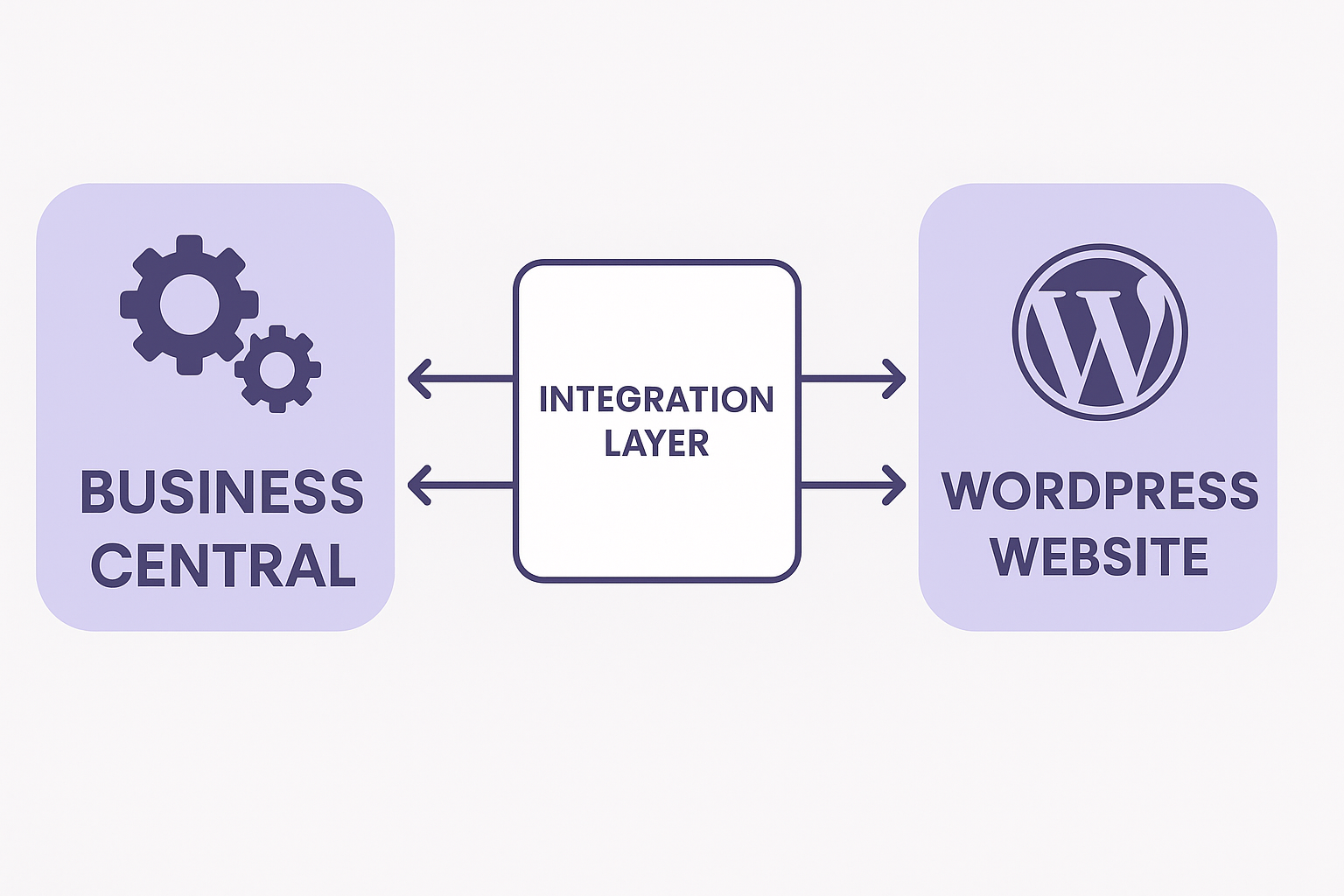
A well-integrated setup turns your website into a front-door interface for Business Central, without exposing your ERP directly to the internet. At a high level:
- Business Central remains the source of truth for master data.
- An integration layer (custom APIs, middleware, or a plugin) handles secure communication.
- WordPress renders that data into pages, forms, and portals your users actually touch.
Examples of what you can deliver in a connected setup:
- Product and service information on the website that is synced from Business Central.
- Website forms that create quotes, leads, or opportunities directly in Business Central.
- Customer self-service pages that surface order history, status, or invoice information.
- Dashboards and reports that combine website and ERP activity in one view.
Integration Architecture 101
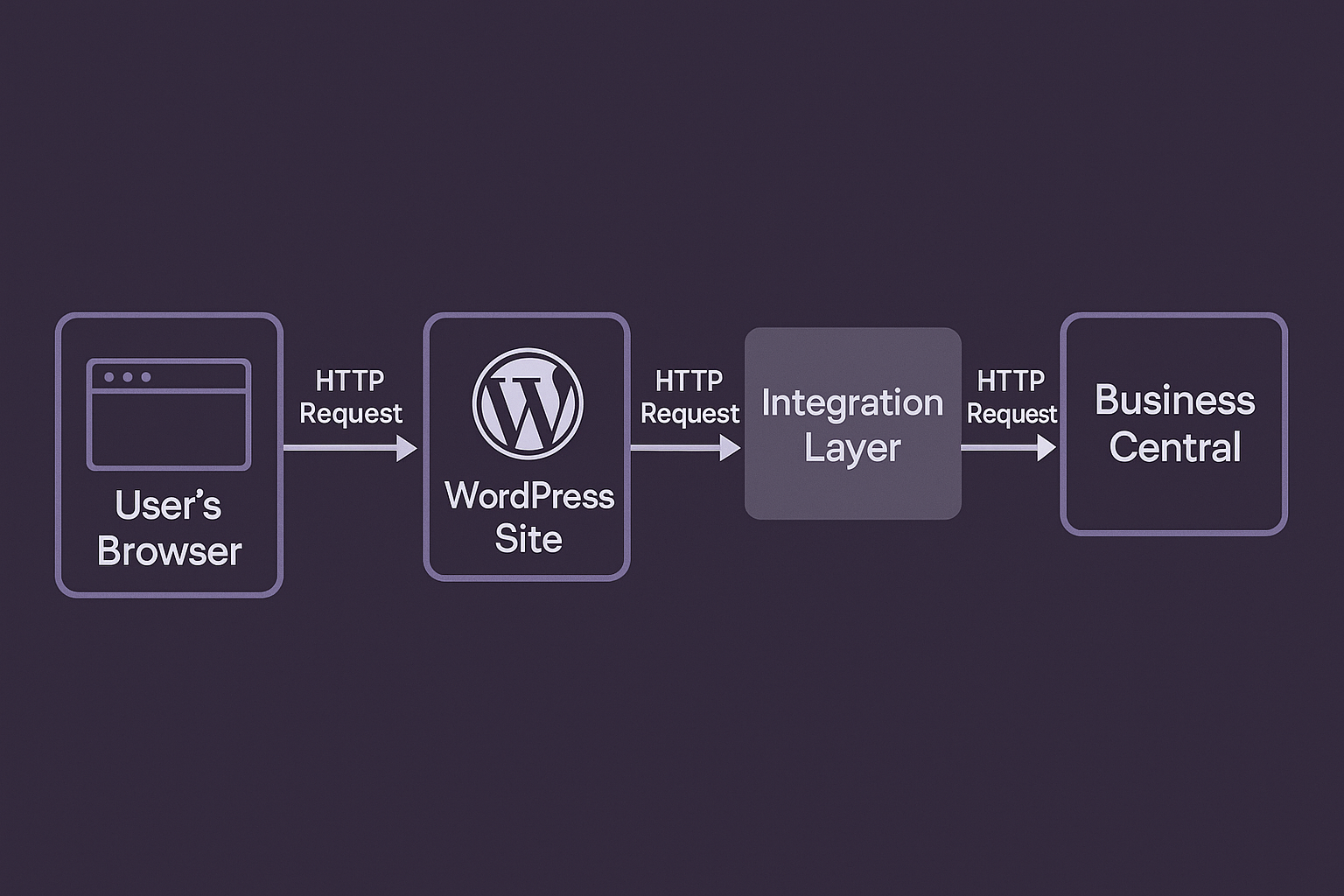
There are many ways to wire systems together, but most successful Business Central–WordPress integrations share a few core patterns.
Key Components
- Business Central APIs / OData: Standard endpoints for reading and writing data.
- Authentication & authorization: Typically via Azure AD app registrations and OAuth2.
- Integration layer: A set of services, middleware, or custom plugins that know how to talk to both Business Central and WordPress.
- WordPress front end: Templates, shortcodes, blocks, or custom endpoints that expose the data in a usable way.
Why You Don’t Want WordPress Talking Directly to Business Central
It’s technically possible to call Business Central directly from WordPress, but it usually leads to problems:
- Security risks: You end up embedding credentials or tokens too close to the front end.
- Performance issues: High-traffic pages can overload Business Central with requests.
- Tight coupling: Any change in Business Central can break the website and vice versa.
A separate integration layer (even if it’s implemented as a well-structured WordPress plugin) gives you a place to centralize authentication, logging, error handling, and caching.
Core Data Flows to Start With
You don’t need to integrate everything at once. Start with a few flows that are easy to implement and clearly tied to business value.
1. Products and Services → Website
Synchronize product or service details from Business Central to WordPress so your site reflects current offerings, descriptions, and key attributes.
- Business Central remains the master source for item data.
- WordPress stores a subset optimized for fast display (e.g., via custom post types or fields).
- Scheduled jobs or webhooks keep the two in sync.
2. Website Forms → Quotes or Leads
Instead of forms that just send an email, have WordPress call your integration layer to create:
- Sales quotes or opportunities in Business Central.
- Customer or contact records when needed.
- Tasks or notifications for your sales or operations team.
This is often the quickest way to prove value: less manual re-entry, faster follow-up, and cleaner data.
3. Customer Status → Self-Service Views
Start small with read-only self-service:
- Order status pages.
- Basic account info.
- Recent invoices or transactions.
Later, you can extend this into a full customer portal with secure logins, payments, and requests, supported by solid data structures and authentication.
Performance & Caching Principles
The fastest Business Central call is the one that doesn’t happen. Performance comes from smart caching and choosing when to read directly from BC versus from a local copy.
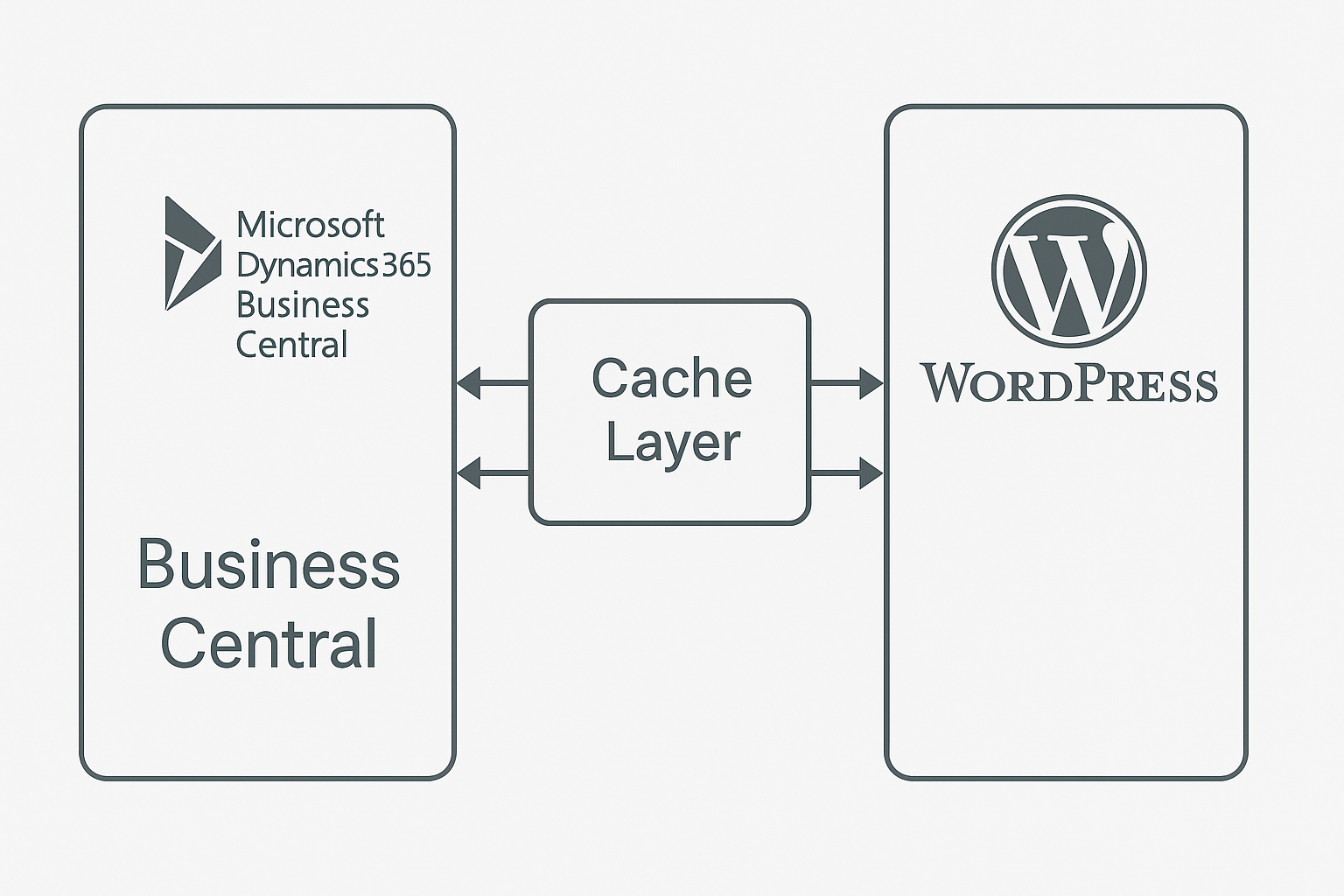
- Cache frequently accessed data: Products, attributes, and other semi-static information can be synced and stored in WordPress.
- Use background refresh: Refresh caches on a schedule or on change, not on every page view.
- Be intentional with real-time calls: Use them only when the user truly needs up-to-the-second information.
Think of Business Central as the source of truth, not the primary rendering engine for your site. Let WordPress and your integration layer do the heavy lifting for user-facing traffic.
Security & Governance
Integration should make your business faster, not more exposed. A few essentials:
- Use service accounts and app registrations: Avoid sharing personal user credentials between systems.
- Apply least privilege: Grant only the permissions required for the integration, nothing more.
- Encrypt in transit: All communication between WordPress, the integration layer, and Business Central should use HTTPS with modern TLS.
- Log and monitor: Track integration calls, failures, and unusual patterns.
- Plan for incident response: Know what you’ll do if credentials are compromised or data is exposed.
Governance also means deciding who owns which data and field definitions. Before you integrate, align on “source of truth” for key objects like customers, products, and pricing.
A Phased Rollout Plan (30 / 60 / 90 Days)
A phased plan lets you deliver value quickly while reducing risk and avoiding “big bang” launches.
First 30 Days: Prove the Basics
- Clean up core data in Business Central (items, customers, key fields).
- Implement one or two read-only flows (e.g., products to WordPress).
- Convert a key form so it creates a quote or lead in Business Central.
Days 31–60: Expand Data Flows
- Add additional product attributes or related records.
- Introduce a simple customer status view (e.g., order tracking).
- Refine caching strategies and performance monitoring.
Days 61–90: Move Toward Self-Service
- Roll out authenticated areas or a simple portal.
- Expose more useful ERP data to customers (within clear security boundaries).
- Establish ongoing processes for data stewardship, monitoring, and incremental improvements.
Common Mistakes (and How to Avoid Them)
- Integrating everything at once: Start with 2–3 high-impact flows.
- Skipping data cleanup: Messy data in Business Central becomes messy data everywhere.
- Over-customizing too early: Use standard patterns where possible; customize where it truly matters.
- Ignoring error handling: Decide what happens when Business Central is unavailable or a call fails.
- Underestimating security: Don’t treat integration credentials as an afterthought.
What You’ll Need from Your Team
Technology alone won’t make integration successful. You’ll also need:
- A business owner for each key process: Someone who can decide how things should work end-to-end.
- Data ownership: Clear accountability for master data quality in Business Central.
- IT and web collaboration: ERP admins and web developers working from the same picture, not separate roadmaps.
- Decision cadence: A regular rhythm for resolving questions and prioritizing changes.
How Elephas Can Help
At Elephas, we focus on making Business Central and your web presence work together as one system—so your teams spend less time on manual tasks and more time serving customers.
We can support you at every stage:
- Business Central implementation and optimization
- Engineering and integrations between Business Central and web systems
- General ledger migrations and upgrades to clean up the foundation
- Hosting and web mastering for reliable, managed websites
- Custom plugins, themes, and SEO to turn your site into a real business tool
If you’re considering a Business Central–WordPress integration, we can help you assess your current landscape, design the right architecture, and implement a phased plan that fits your team and budget.
FAQs: Business Central–WordPress Integration
1. Is Business Central–WordPress integration only for large companies?
No. In many ways, growing small and mid-sized businesses benefit the most. You’re close enough to the work to see manual friction clearly, and small changes can have a big impact on efficiency and customer experience.
2. Do we have to rebuild our website to integrate with Business Central?
Usually not. If your site is already on WordPress, you can often integrate using custom plugins, APIs, and structured data models rather than a full redesign. Many organizations pair integration work with a visual refresh, but it isn’t strictly required.
3. How long does a basic integration take?
A focused first phase—such as syncing key product data and converting one or two forms into Business Central records—can often be completed in a matter of weeks, depending on data quality, approvals, and scope.
4. What skills does our internal team need?
You’ll need someone who understands your Business Central setup, someone who owns the website, and a business lead who can decide how processes should work. A partner like Elephas can handle the integration architecture, development, and coordination between teams.
5. Is it safe to expose Business Central data on the website?
Yes—if you design it correctly. Using secure APIs, least-privilege permissions, encryption, and a proper integration layer helps you control exactly what is exposed and to whom, while keeping your core ERP protected.
Related reading: Continue with Gravity Forms-to-ERP integration patterns and ERP integration architecture.